
Field-level treatments
Marking AI-touched fields with a known color
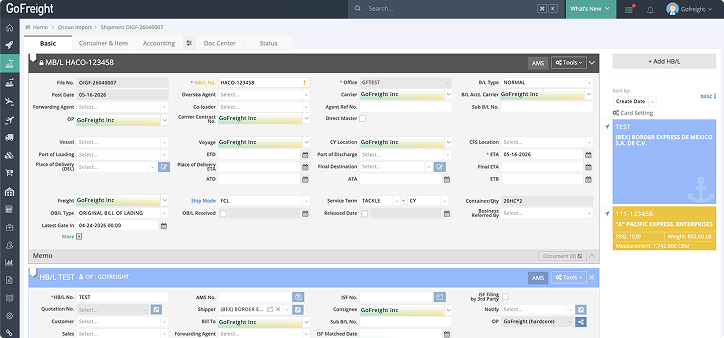
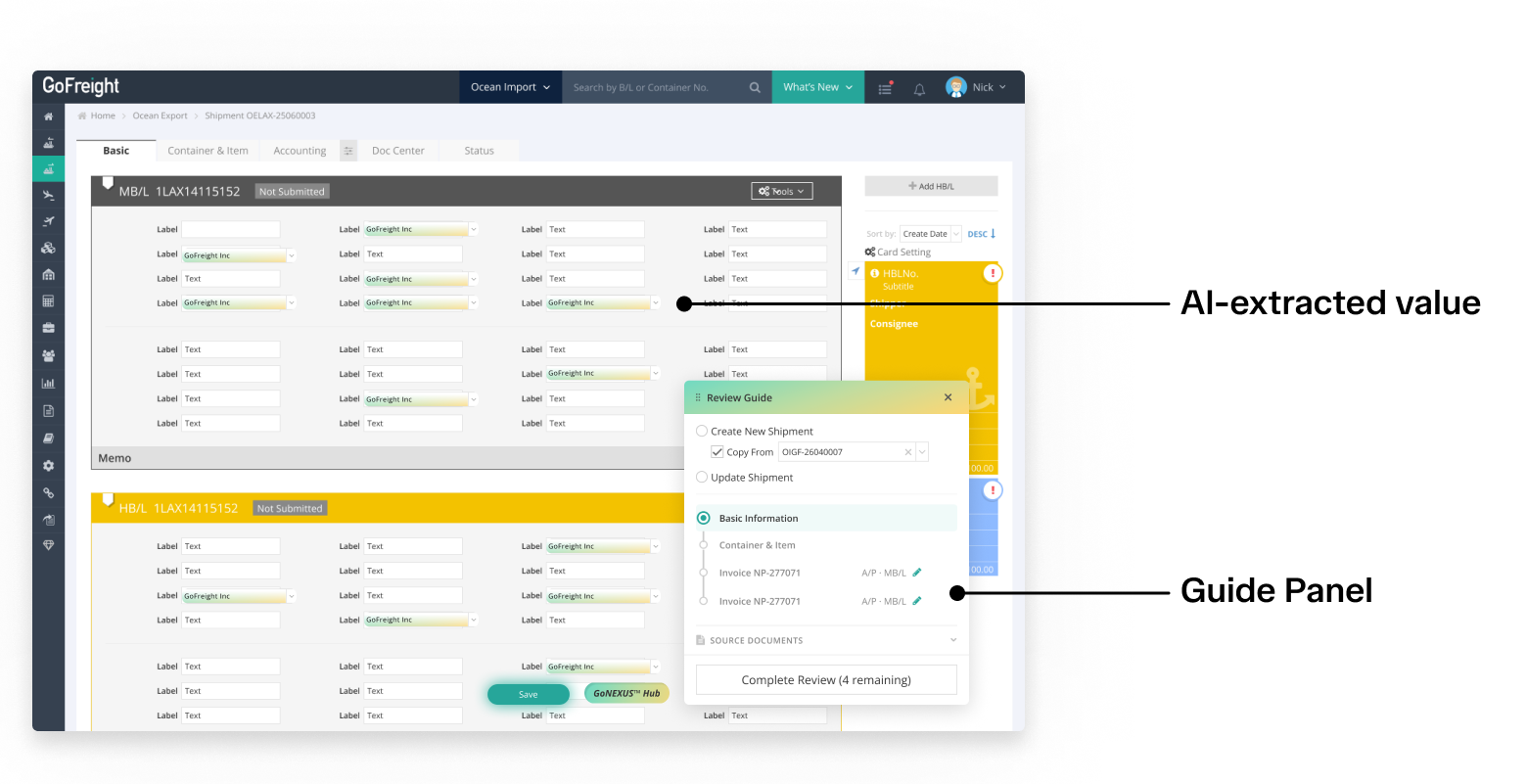
Every field that came from AI extraction is filled with the existing GoFreight AI accent color, the same one already used across other AI surfaces in the product. Regular users read it as “this came from AI” with no separate legend or onboarding. A new marker would have added cognitive load the feature didn't need.
Previous Value tooltip
On Update conflicts
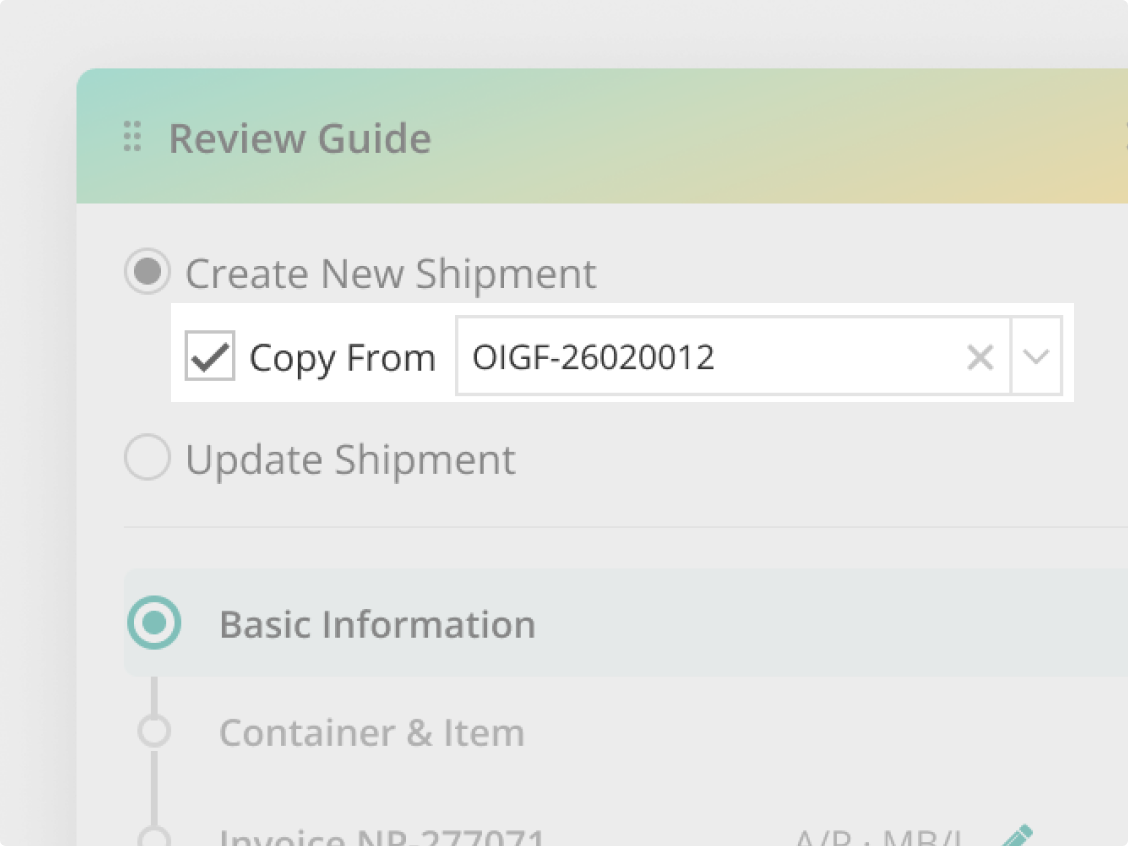
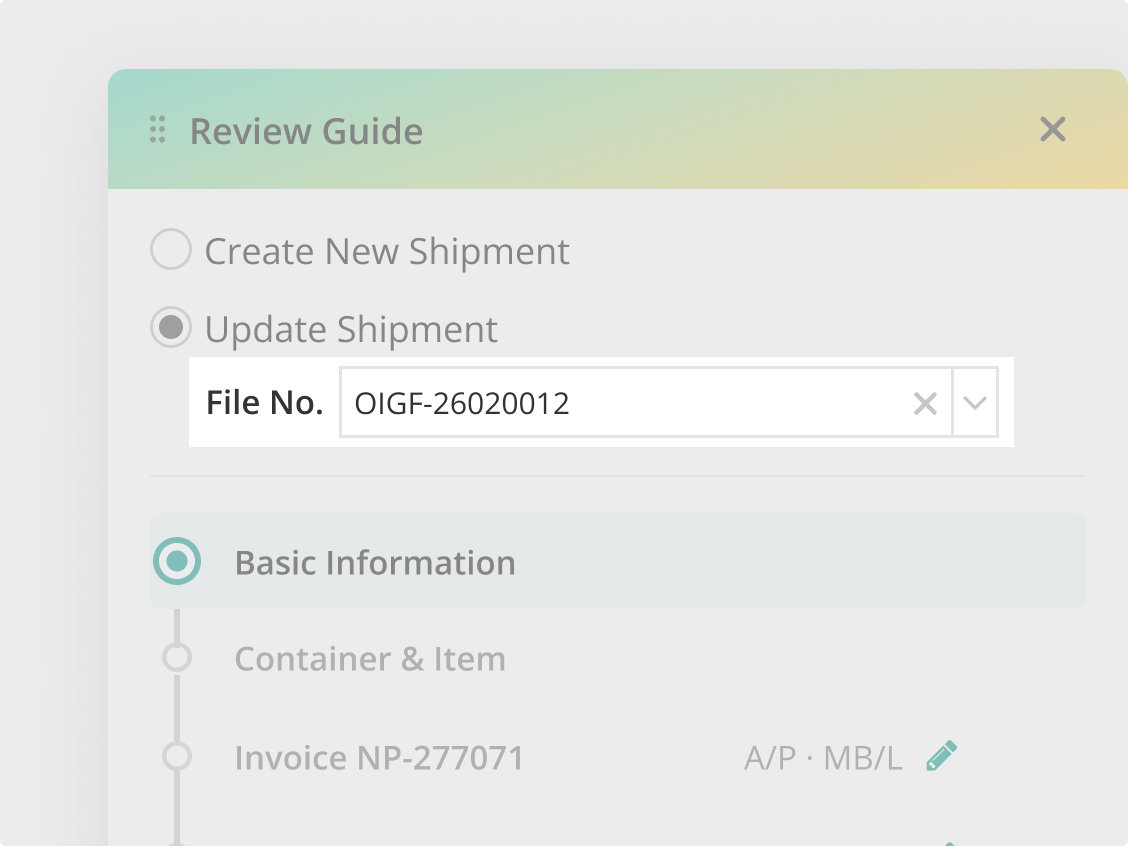
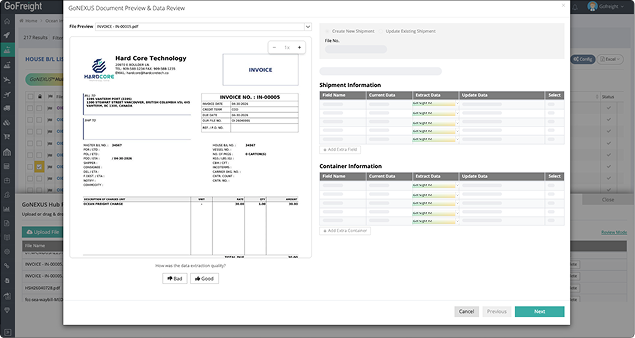
Update Shipment is one of two review modes, the other being Create New Shipment, where no previous data exists yet. In Update mode, when an AI-extracted value overwrites an existing field, a small Previous Value tooltip appears with a Restore option, putting the old value next to the new one so the user can compare before deciding what to keep.
Review Guide
The Review Guide panel
Walking through the Shipment tab by tab
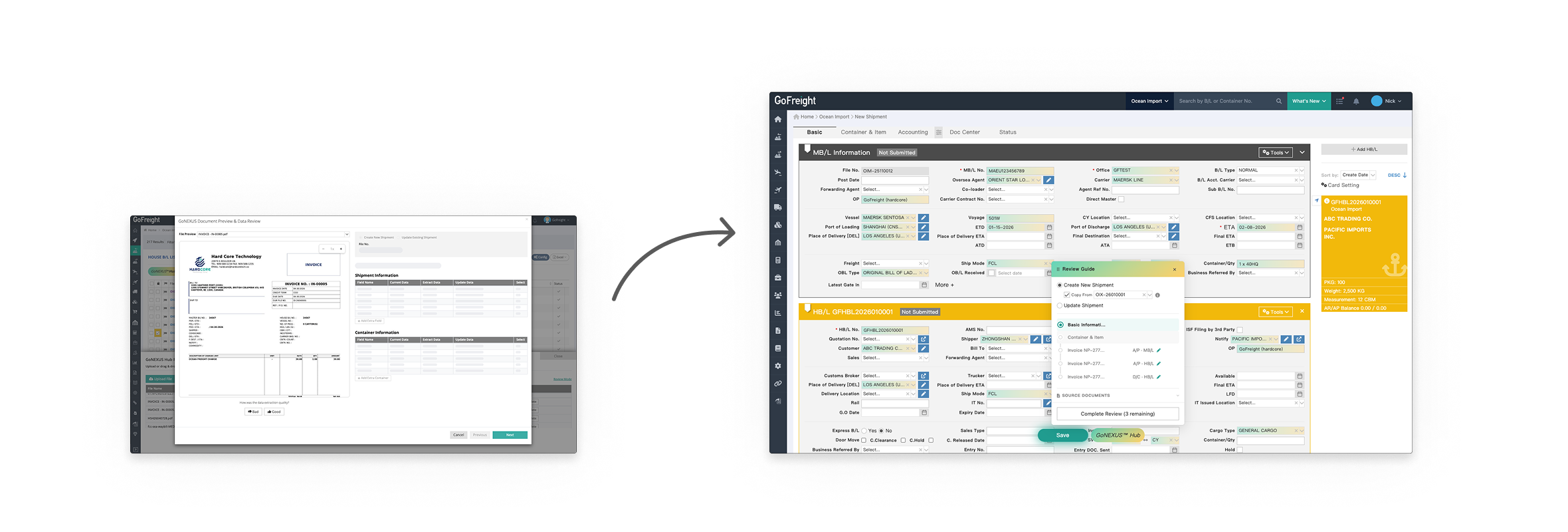
When a user starts a review, the Review Guide panel walks them through the Shipment tab by tab, Basic Information, Container & Item, each Invoice, marking each step complete and moving focus to the next. The vertical progress line mirrors how far they are into the Shipment.
Review Guide
Source Documents
PDFs stay one click away
The panel holds a Source Documents section, collapsed by default, there when the user needs it and out of the way when they don't. Clicking a document opens the PDF in a separate browser tab. That came straight out of interview behavior, where users only reach for the PDF when something in the extracted data looks off. Keeping it a click away preserves the full Entry page for the cross-tab checking they were already doing.
Review Guide
Complete Review and Skip
New save semantics for a multi-tab review
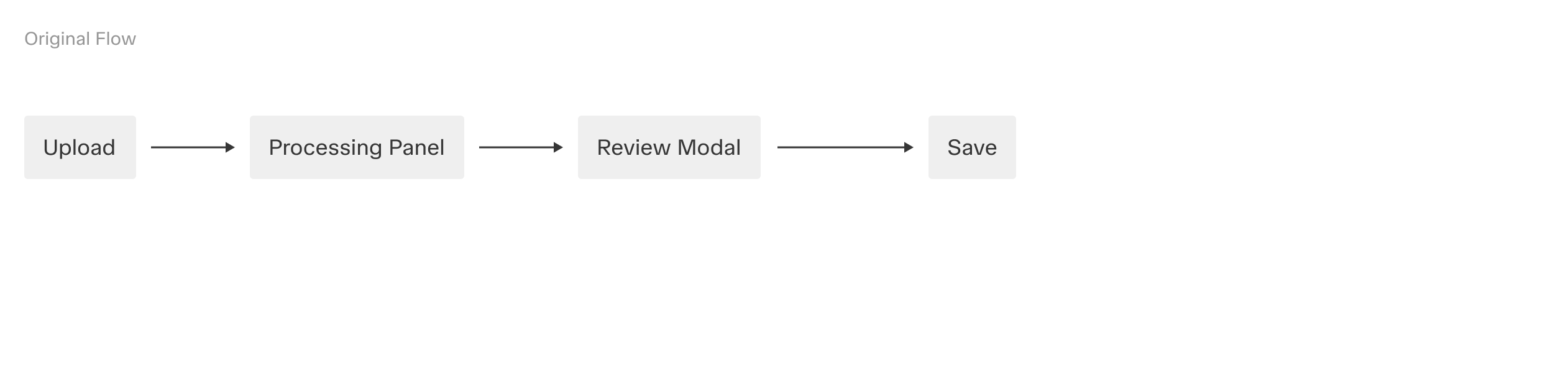
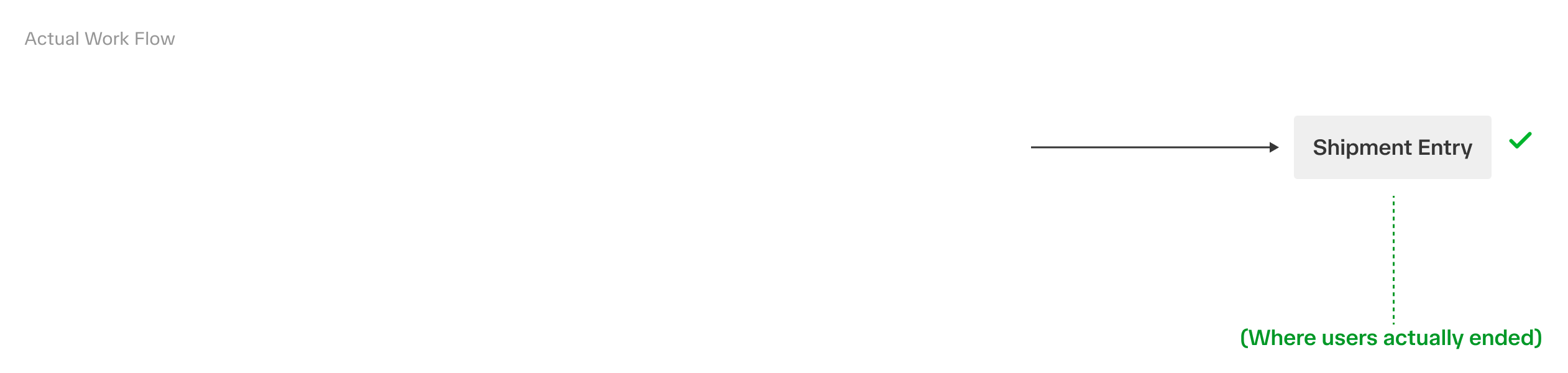
The old modal had one Save, confirm everything and close. v2 doesn't go through a modal, and the review spans several tabs, so the Review Guide carries two actions instead. Skip removes a section from the review without ending the flow. Complete Review marks the end. The button shows how many steps remain and only turns solid green once every step is reviewed. Together they let users commit the review one section at a time.